Kitty Board works the same on every device, but a laptop or desktop has room for more. On a big screen your home spreads into two columns, and a few keys save a lot of clicking. Phones and tablets keep their simple, one-column layout.
Your home, in two columns
- On the left: Today, anything waiting for you (jobs to OK, a child's I need a hand, prize ideas, nudges) and your boards.
- On the right: your Kitty Jar and your next prize, your Inbox with a box to jot something down, and your family's cats.
- Along the top: Boards, Priority, Calendar, Inbox and Kitty Jar, with Help and Settings at the right.
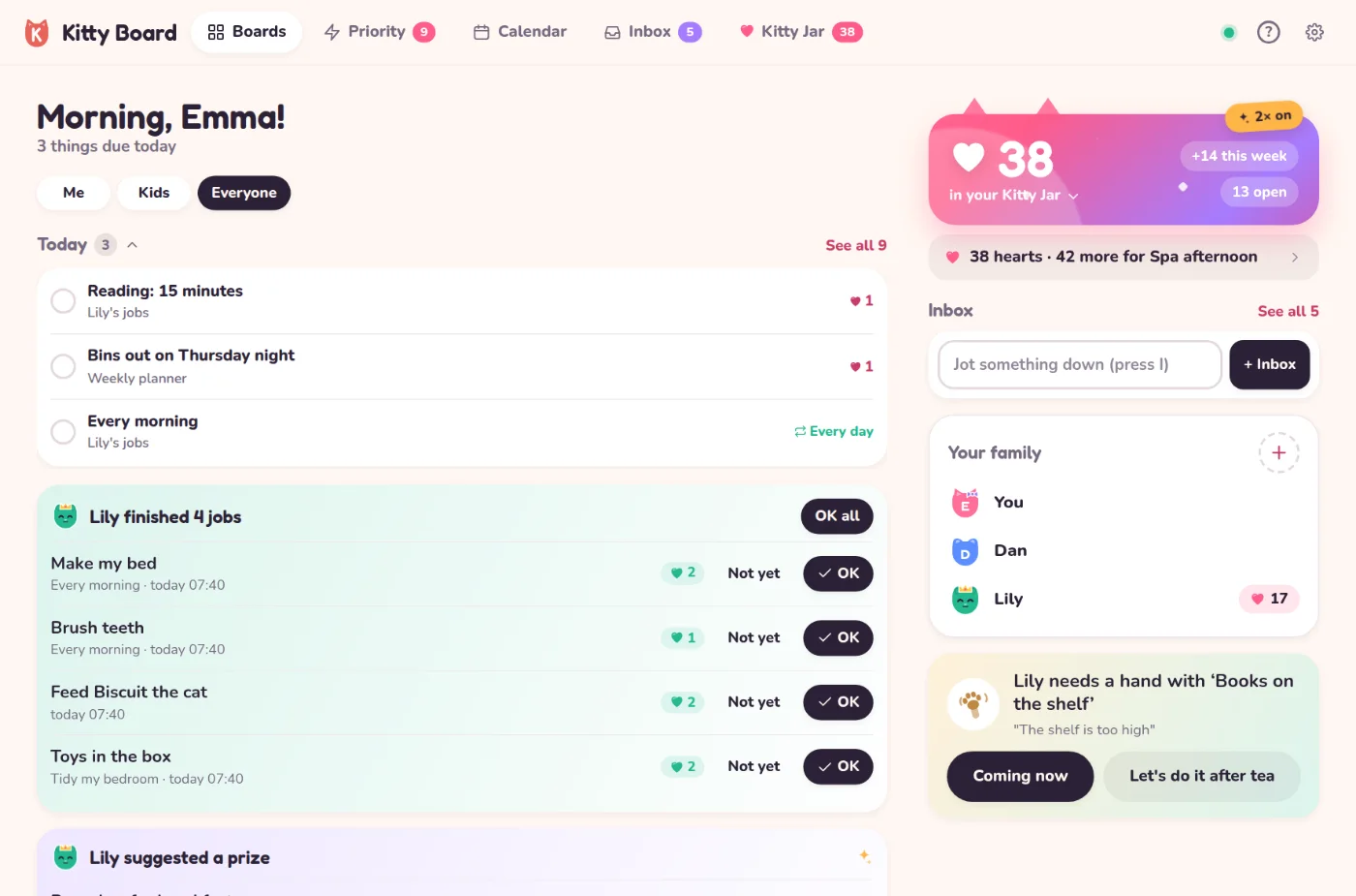
Children get a big-screen home too, with their jobs, Kitty Jar and prizes side by side.
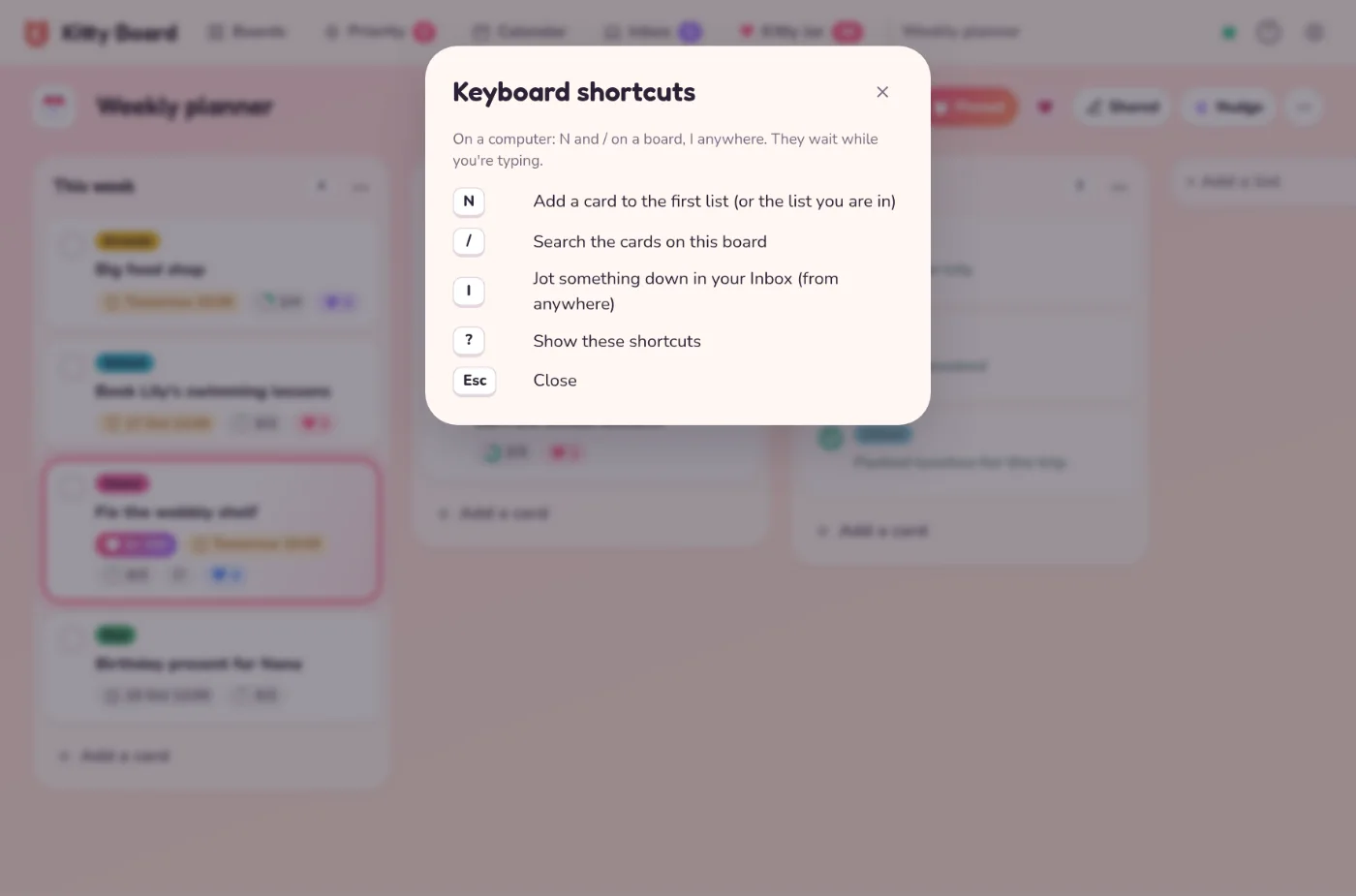
Keyboard shortcuts
- N
- On a board: add a card to the first list, or to the list you're in.
- /
- On a board: search its cards.
- I
- Anywhere: jot something down in your Inbox.
- ?
- Show the shortcuts.
- Esc
- Close what's open.
Shortcuts wait while you're typing, so they never get in the way of a card title. They're for grown-ups.
Drag and drop
- Drag cards between lists on a board.
- Drag a job to another day on the family calendar. It keeps its time.
Want it in your dock or taskbar? In Chrome or Edge, click the install icon in the address bar. See Installing the app.