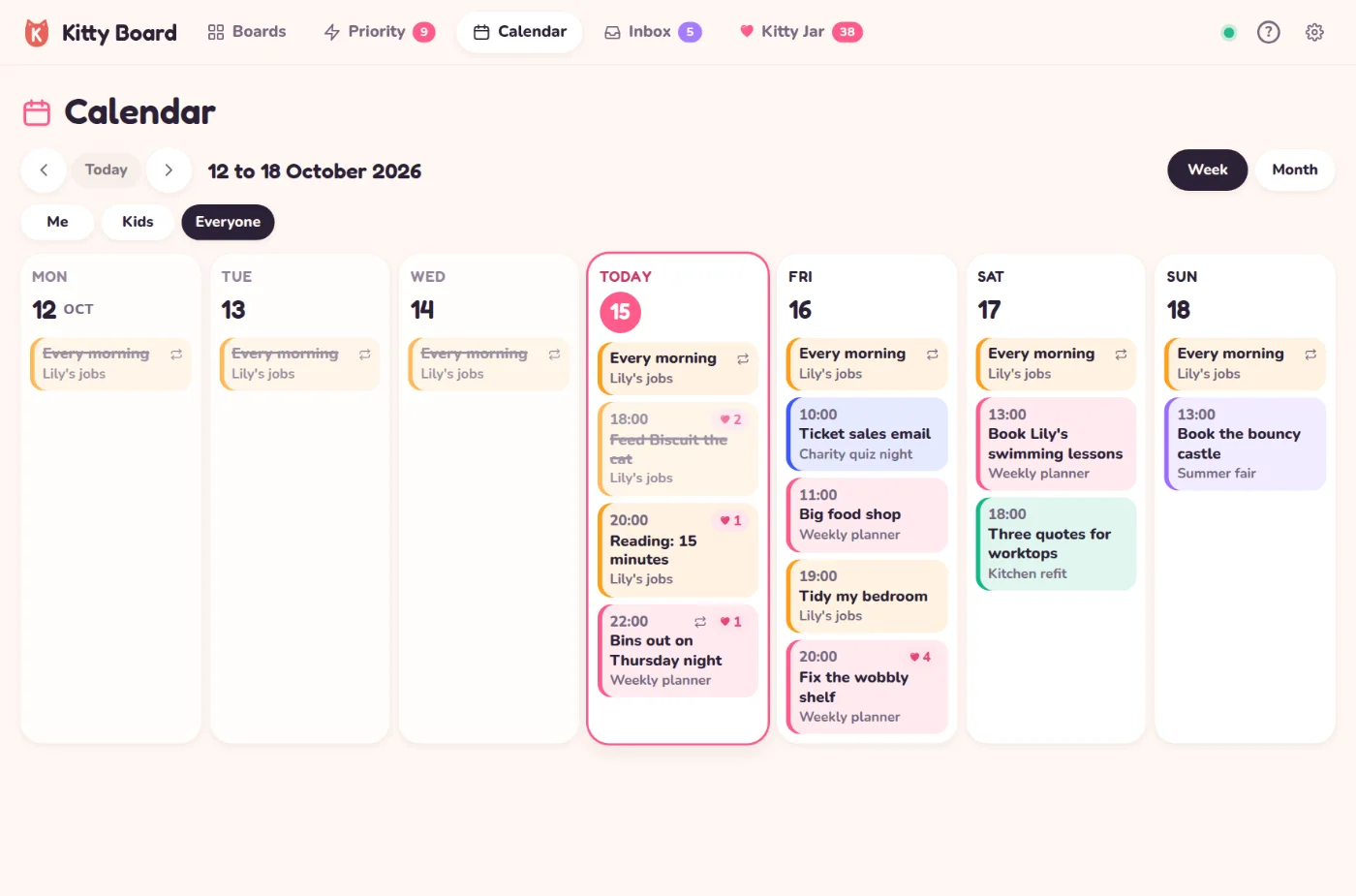
Everything with a date, in one place. The calendar shows every card and task with a due date from the boards you can see, each in its board's colour, with hearts where there are hearts. Repeating jobs show on every day they come round. It's on every plan: it shows what you already have.
Find it
- On a computer or tablet: Calendar in the top bar.
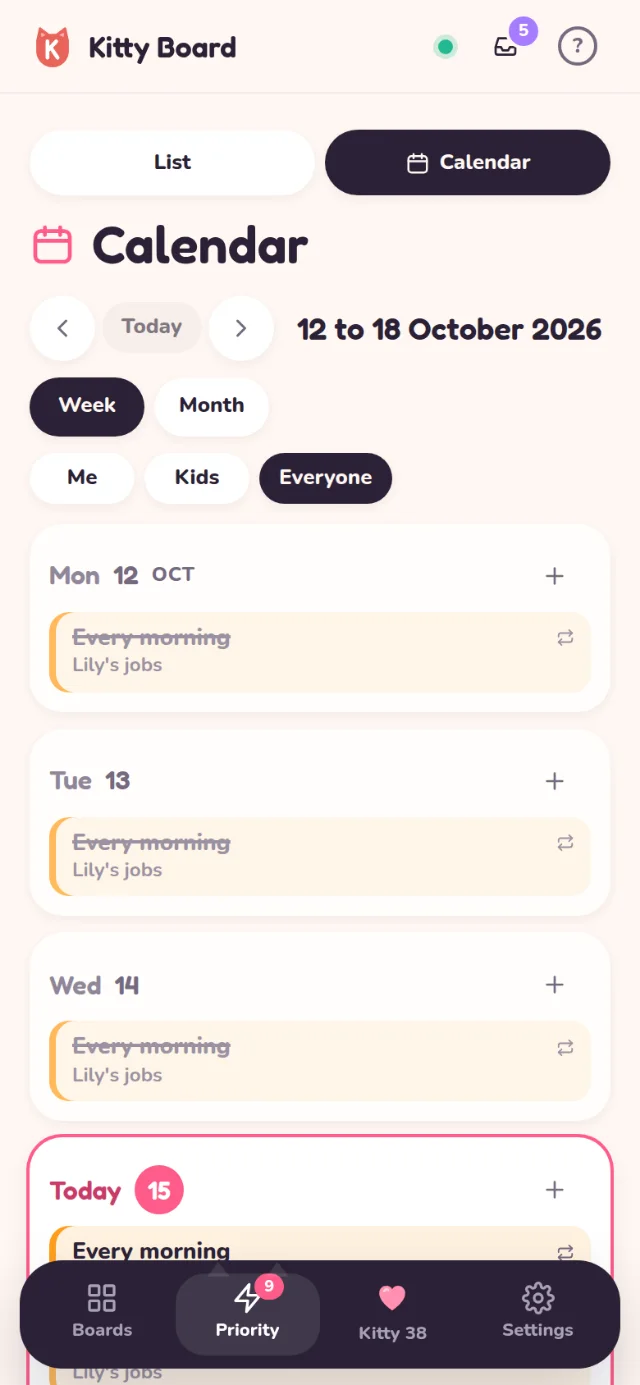
- On a phone: open Priority and tap Calendar at the top. (The tab bar keeps its four tabs, so your thumb always knows where things are.)
Week and month
- Week runs Monday to Sunday. On a phone the days are a list, one under another, so nothing is squashed.
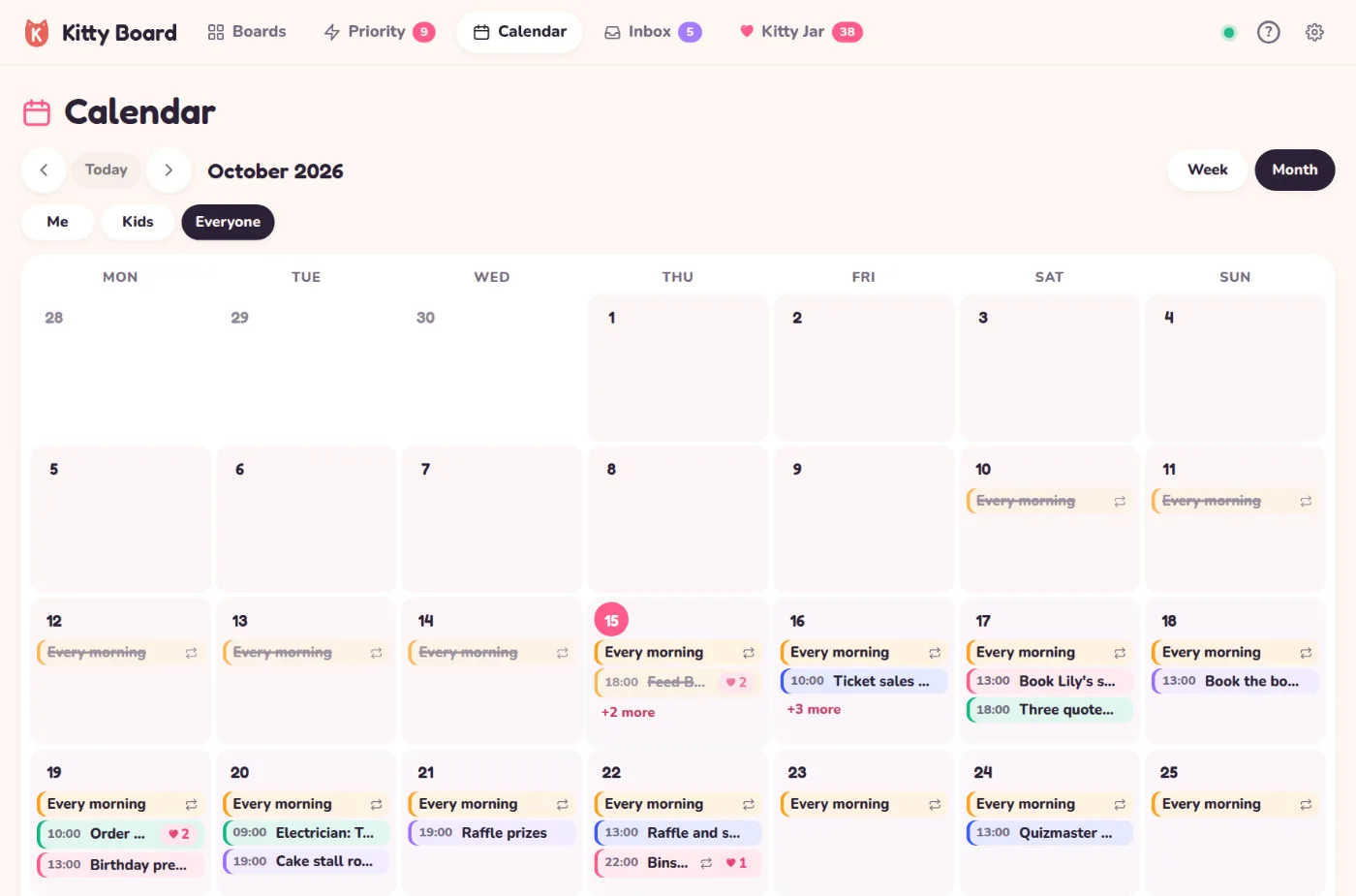
- Month shows the whole month. On a computer each day lists its first few jobs; on a phone each day has coloured dots, and tapping a day shows its jobs underneath. Jobs that repeat every day fold into one line, such as 3 daily jobs: tap it to see them.
- The arrows step back and on, and Today brings you back.
- Using Me, Kids and Everyone on your home? The same chips work here.
Move a job to another day
- On a computer: drag it to another day. It keeps its time: a 9am dentist stays at 9am.
- On a phone: tap it, then Move to… in the card, and pick a day.
- Changed your mind? Tap Undo.
Repeating jobs come round by themselves, so they stay put. To change their days, open the card and tap Repeats. Boards shared with you to look at only stay as they are too.
Add from the calendar
Click an empty part of a day (or tap the + by a day on a phone). Type the job, add a time if you like, and choose the board and list. Kitty Board remembers the board you used last.
My days, for children
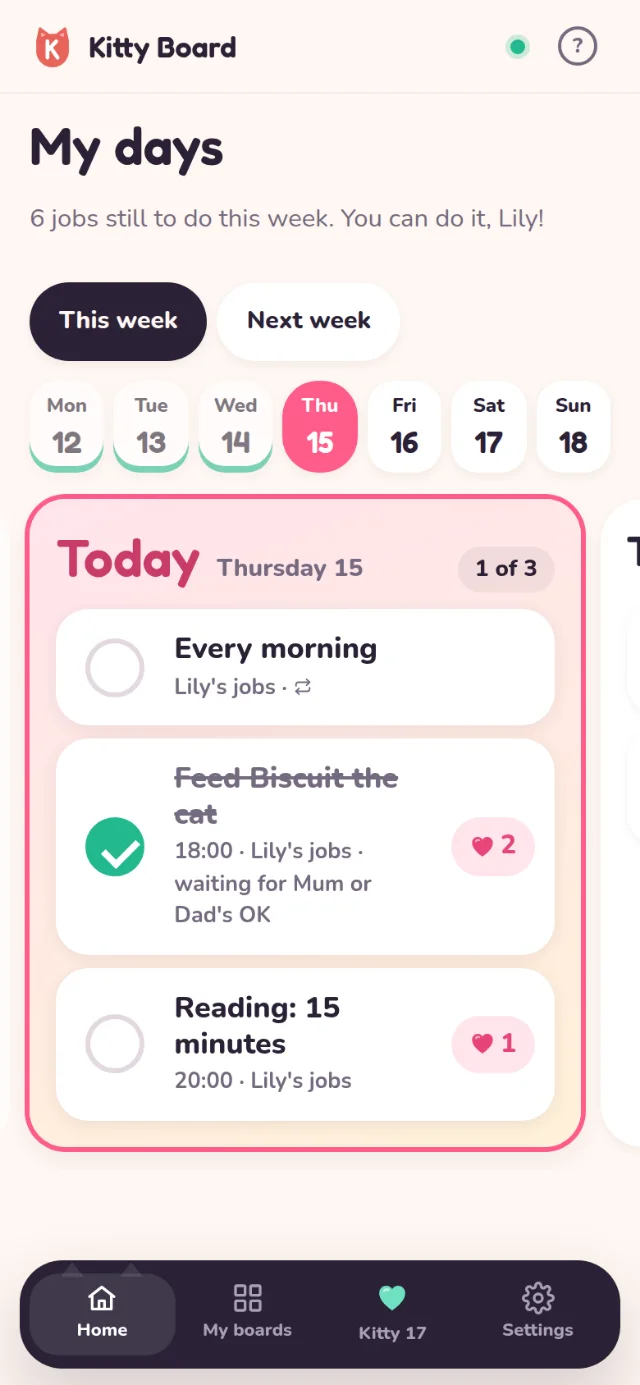
Children get their own, much friendlier view: My days, a big card on their home. Seven big day cards, today big and bright, with their jobs as large rows to tick and the hearts each one earns. When a whole day is done, their cat cheers. There's no month, no dragging and no changing dates, and ticks work as they always do: hearts wait for your OK.